Support Ticket Management
The Support Ticket module centralizes all incoming inquiries from users and organizers. This interface allows administrators to track the volume of support requests, monitor ticket ages, and ensure that no customer query goes unanswered.
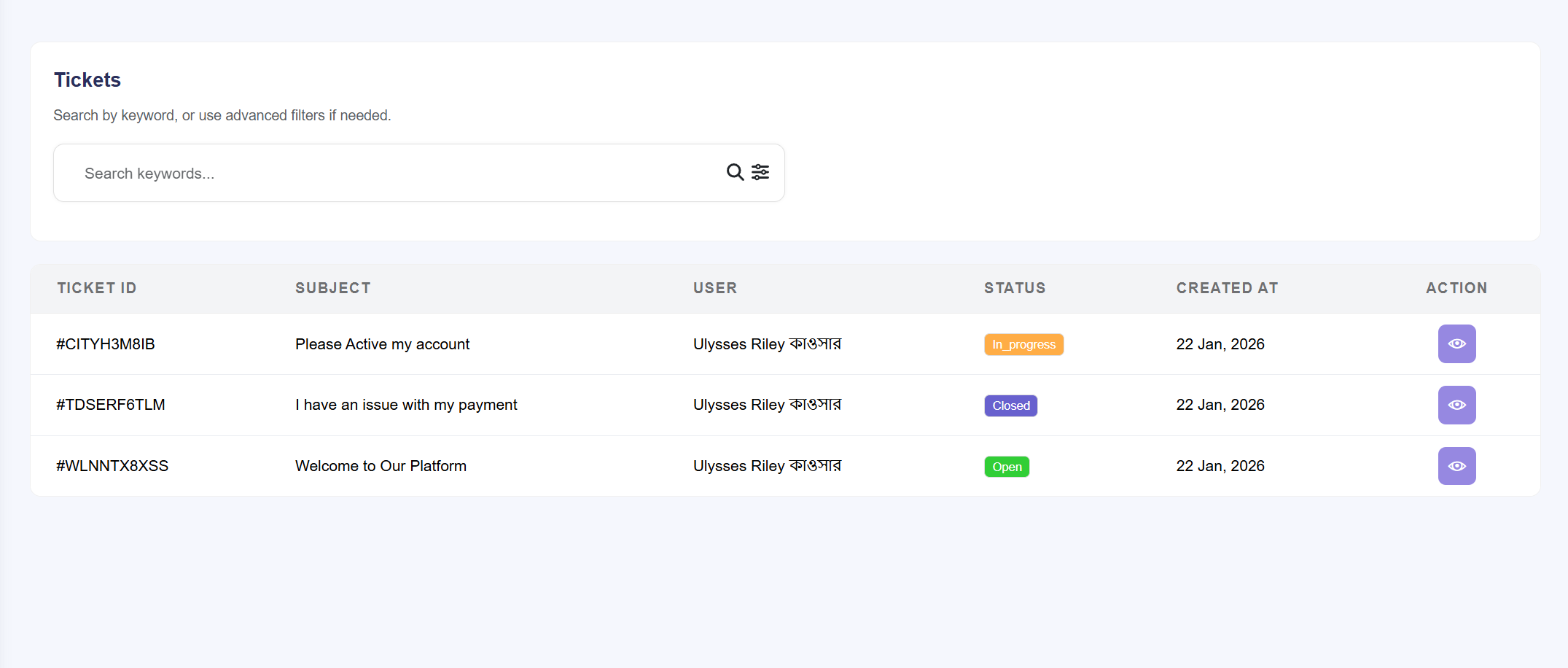
Figure 1.0: The master queue for monitoring ticket status and priority.
Queue Management Tools
- Ticket Overview: View essential metadata including Subject, User Name, and Ticket ID.
- Status Indicators: Track the lifecycle of a query through color-coded
status badges:
- Open: A new ticket awaiting initial review.
- In Progress: Admin has replied, waiting for user feedback.
- Replied: User has responded back to the admin.
- Closed: The issue has been resolved and the ticket is locked.
- Priority Levels: Identify urgent issues instantly with Low, Medium, or High priority tags.
- Action: Click the View (eye icon) to enter the conversation and resolution dashboard.
Ticket Resolution & Staff Assignment
The Ticket Detail page is the active workspace for resolving issues. It features a conversational interface and administrative controls for internal collaboration.
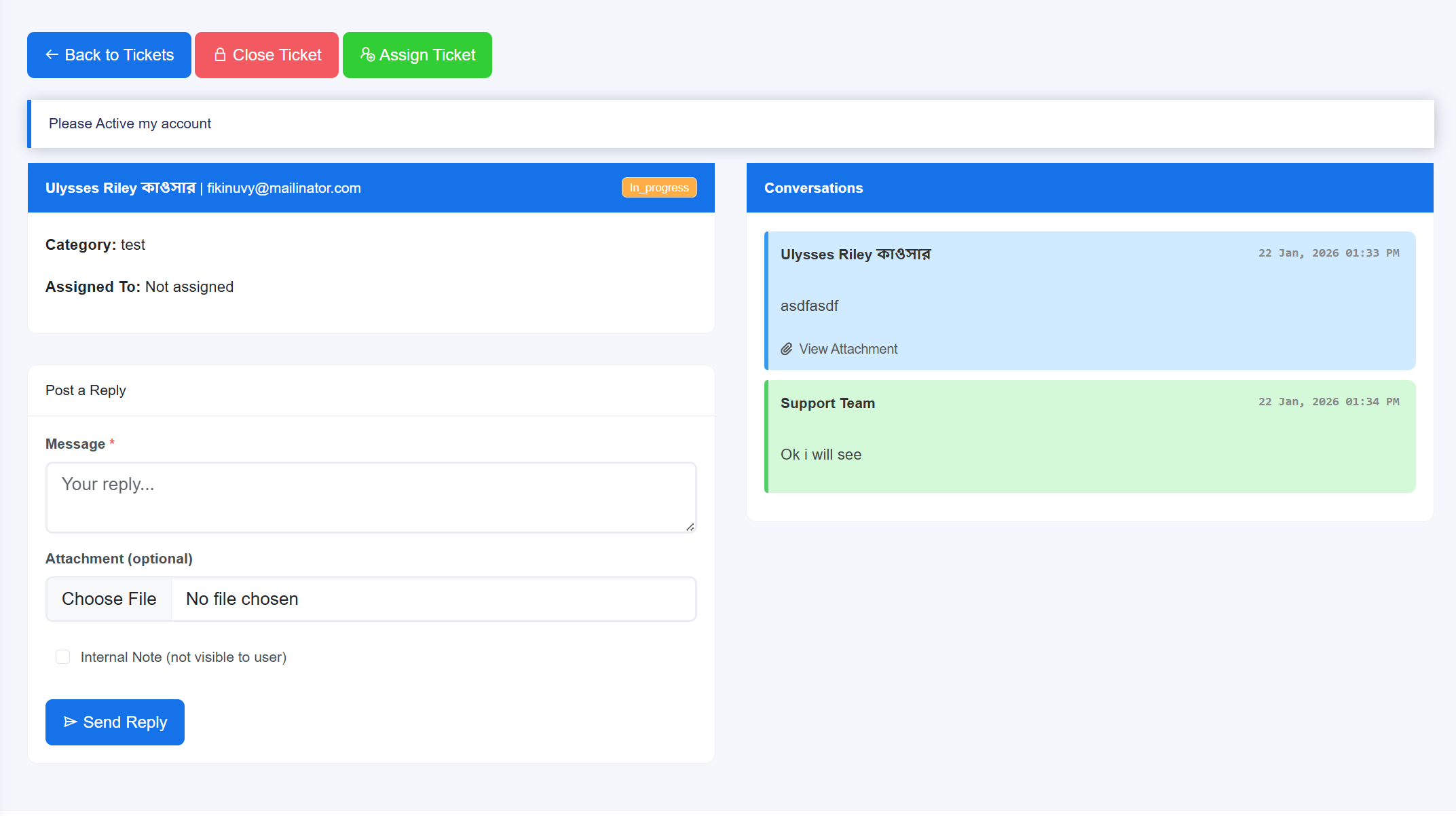
Figure 1.1: Conversational interface for replying to users and
assigning staff.
Administrative Interaction Tools
- Reply Interface: Use the Post Reply text area to communicate directly with the user. The interface supports rich text and allows for File Attachments (e.g., screenshots or logs) to be sent as evidence.
- Staff Assignment: For teams with multiple moderators, use the Assign Staff dropdown. This allows the Super Admin to delegate the ticket to a specific staff member who specializes in that issue (e.g., "Billing Specialist").
- Closing Tickets: Once a solution is reached, click the Close Ticket button (red icon). This prevents further replies and moves the ticket to the resolved archive.
- Message History: View a chronological log of the conversation, distinguishing between User Messages (left/white) and Admin Replies (right/colored).
Pro Tip: Before replying, check the user's details linked in the sidebar of the
ticket to understand their account status or transaction history for faster resolution.