Financial Logs & Payment Approvals
This section covers the administrative workflow for verifying manual bank transfers and monitoring all financial movements across the platform.
1. Payment Logs & Approvals
This page logs all ticket purchase attempts. It distinguishes between automatic online payments and manual bank transfers that require administrative intervention.
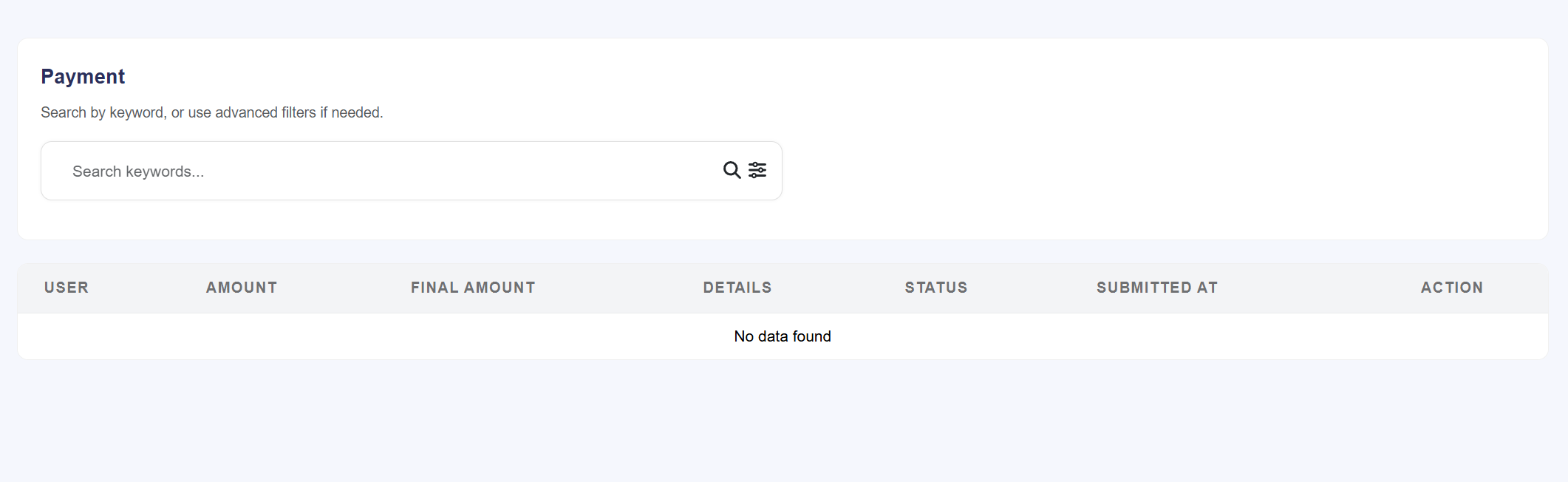
- Bank Payment Verification: For offline/bank transfers, the admin can view the uploaded Payment Receipt from the user.
- Manual Approval: Use the Accept button to confirm the funds have hit your bank account, which then issues the ticket to the user.
- Rejection: Use the Reject button if the receipt is invalid or funds are not received.
- Online Status: For gateways like PayPal/Stripe, this log serves as a successful transaction record.
2. Withdrawal Logs (Payout Approvals)
Manage the payout requests from organizers. No money leaves the platform until an administrator manually audits and confirms the withdrawal.
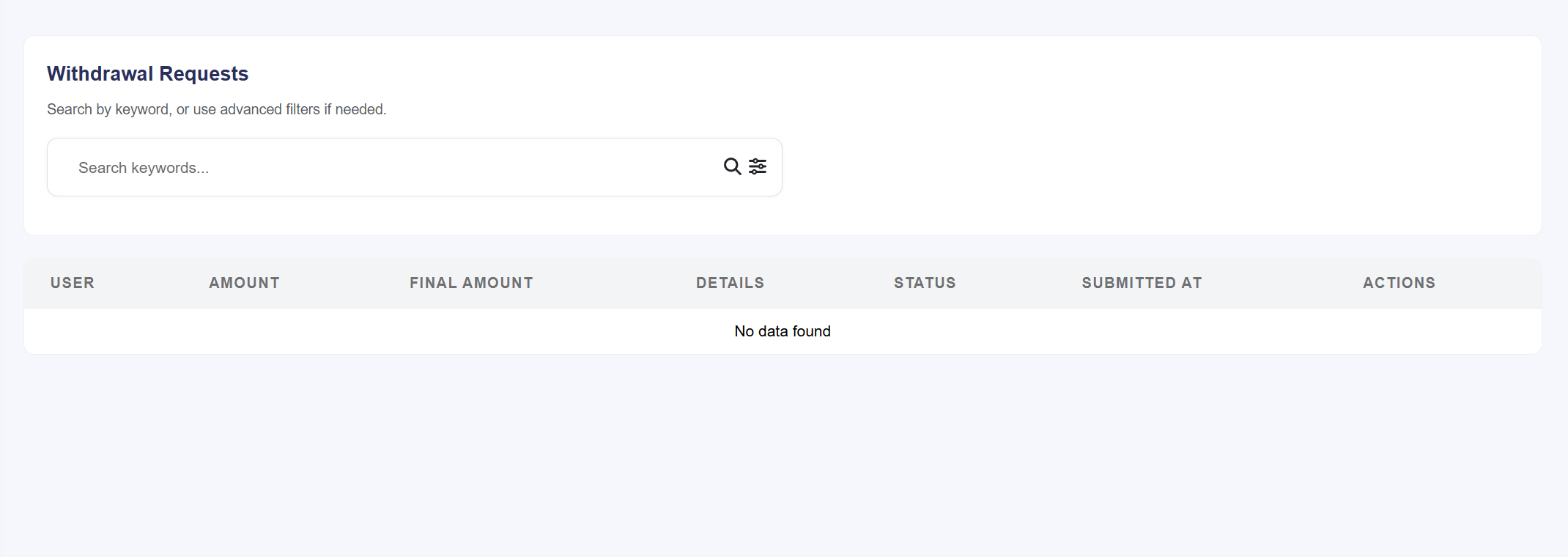
- Request Audit: View the organizer's balance, the requested amount, and the applicable withdrawal fees.
- Bank Details: View the specific account info or wallet address where the organizer wants the funds sent.
- Approval/Rejection: Once you have manually sent the money via your bank/gateway, click Accept. If there is an issue with their details, click Reject to refund the amount back to their organizer wallet.
3. Subscription Logs
Tracks organizer payments for membership plans. Similar to ticket payments, bank-based plan upgrades must be authorized here.
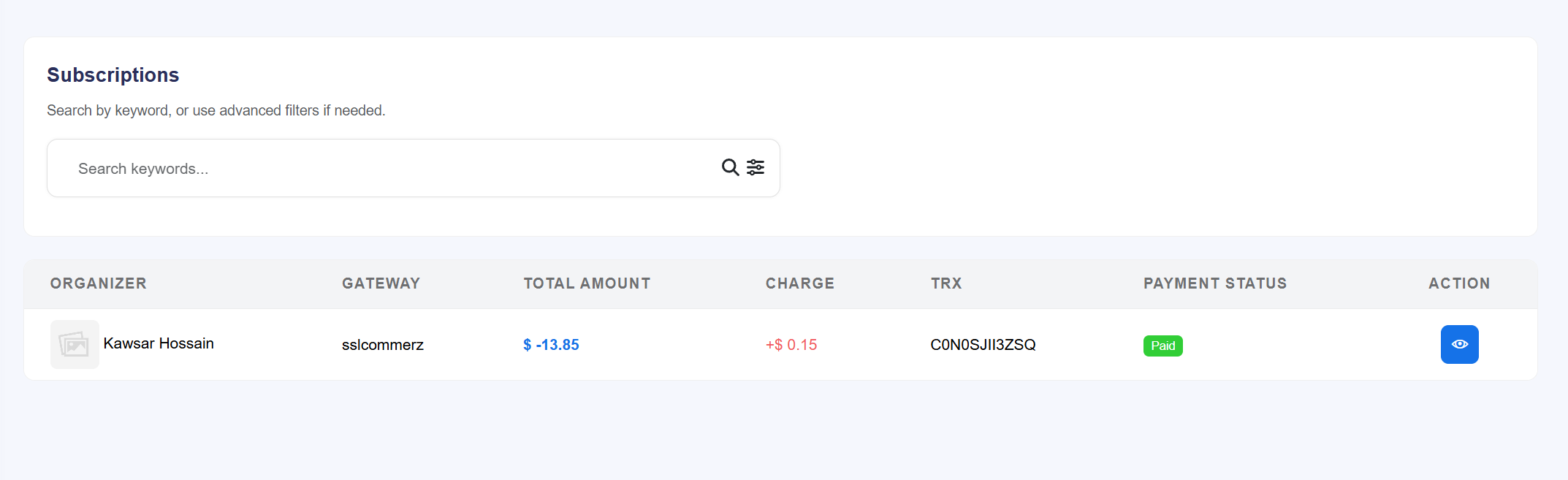
- Manual Upgrades: If an organizer pays for a "Pro" plan via bank wire, the admin reviews the proof of payment here.
- Plan Activation: Clicking Accept instantly upgrades the organizer's limits (event count, AI limits, etc.) based on the purchased plan.
- Status History: Provides a history of all active, expired, and pending subscription attempts.
4. Transaction Logs (The Ledger)
The master financial record. Unlike the logs above, this is a permanent ledger that tracks the "Plus" or "Minus" effect on every account balance.
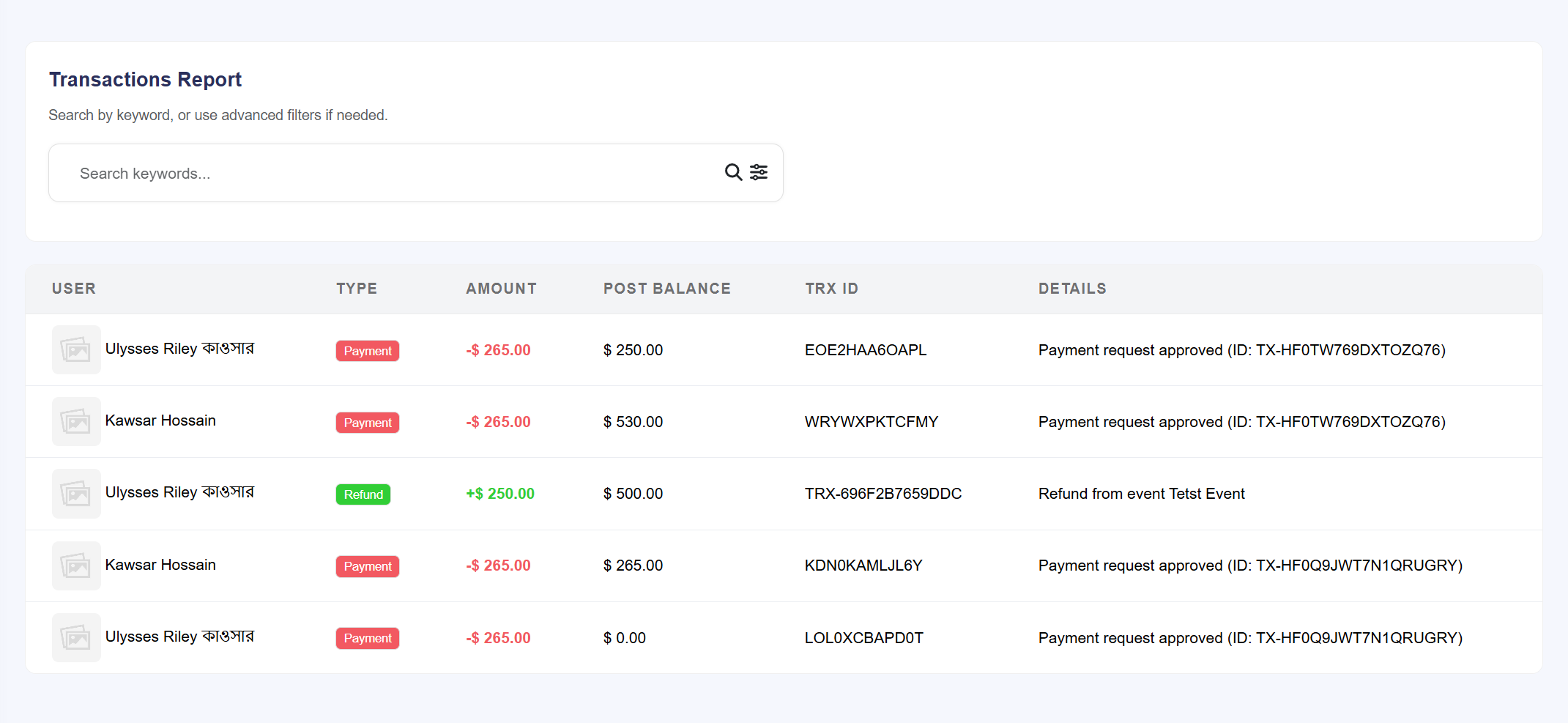
- TRX Tracking: Every log is tied to a unique Transaction ID for easy cross-referencing with payment or withdrawal logs.
- Post Balance: Shows the exact amount in the user's wallet *after* the transaction occurred to prevent balance discrepancies.
- Audit Description: Automatically details the nature of the transaction (e.g., "Withdrawal Approved" or "Ticket Purchase").